

How Can I Check Which iPhone I Have Without Turning It On?

Need to know which iPhone you have, but the phone won't turn on?
Normally, if your iPhone is working, you could just go to Settings → General → About → Model Name. Your iPhone will show its Model Name, so you can see whether you have an iPhone 13, iPhone 15 Pro, or another model. This is the easiest and most reliable method. If all you want to know is “How can I check which iPhone I have?”, the Model Name is all you need.
But what if the screen is dead, the phone won't power on, or you simply can't get into Settings? If the iPhone won't turn on, a few physical details can help you narrow down which iPhone you have.
In this blog:
- So, How Can I Check Which iPhone I Have Without Turning it On?
- How Do I Know What Version of iPhone I Have Just by Looking at It?
- Still Can't Identify Your iPhone? Try This
- Frequently Asked Questions
Let’s get started!
So, How Can I Check Which iPhone I Have Without Turning it On?
If your iPhone is dead, won't charge, or you simply can't access the screen, start by looking for its A-number. The A-number is a model number used to identify a specific iPhone model. It looks something like Axxxx (e.g A2633).

Depending on the iPhone, check these locations:
-
Check the back
Older iPhones may have it printed on the back like for iPhone 7 and earlier models. Look closely at the small text and find the number beginning with A.
-
Check the SIM tray
If your iPhone has a physical SIM tray like iPhone 8 or earlier, remove the tray and check the area around the slot for the model number. On some models, the number is printed on the upper side of the opening. The text is very small, so good lighting or a magnifying glass can make it easier to read.
-
Check the charging port
If your iPhone doesn't have a physical SIM tray like for newer phones, check around the charging connector.
Depending on the model, Apple places the model number on the upper side of the Lightning or USB-C connector, toward the display. Once you find the model number, compare it with Apple's official iPhone model list to determine the exact model.
Use the A-number to confirm which iPhone model you have. It is different from the serial number and IMEI, which identify the individual device rather than serving as the model identifier.
If you can't find an A-number in any of these locations, don't worry. You can still narrow down the iPhone by looking at its physical features.
How Do I Know What Version of iPhone I Have Just by Looking at It?
Didn’t find any A-number and is wondering, “How do I know what version of iPhone I have just by looking at it?”
No worries, you can also narrow down your iPhone by checking a few physical details. Apple's iPhone model guide uses physical characteristics such as camera layout, buttons, body design, SIM-tray placement, and connector type to distinguish between models.
Start with the features that are easiest to spot, then compare several of them together.
-
A Home button usually points to an older design.
If the screen has a physical Home button and relatively thick bezels, you're likely looking at an older iPhone such as an iPhone 6, 7, 8, or an iPhone SE. Models from the iPhone X onward moved away from the traditional Home button. -
The number of rear cameras can narrow the model family.
A single rear camera appears on models such as the iPhone XR, iPhone 8, and several iPhone SE models. Two cameras are common on standard iPhone models, including the iPhone 11 through iPhone 16 generations. Three rear cameras generally indicate a Pro model, such as the iPhone 11 Pro through iPhone 16 Pro. -
Pay attention to the shape of the sides.
Older models from the iPhone 6 through iPhone 11 generally have rounded edges. The iPhone 12 introduced the flatter-sided design that continued through later generations. -
The charging port can quickly rule out several generations.
iPhones through the iPhone 14 generation use Lightning, while the iPhone 15 generation and later use USB-C. -
Buttons can provide another clue.
Some newer iPhones have an Action button instead of the traditional Ring/Silent switch, while newer generations also introduced additional controls such as Camera Control. These features can help narrow down the generation when combined with the phone's other physical characteristics. -
Don't rely on one feature alone.
Several iPhones share similar designs, so camera count or edge shape by itself may not give you the exact model. Combine two or three clues, then use the A-number if you can find it to confirm the result.
Lastly, compare the features you found with Apple's Identify your iPhone model guide, which lists the physical characteristics and model numbers for individual iPhone models with photos.
Still Can't Identify Your iPhone? Try This
If you still can't find the model number or aren't confident about the physical clues, you can also check the original box, purchase receipt, order history, or carrier records if you still have them. These may list the iPhone model.
As a last resort, take the iPhone to an Apple Store, Apple Authorized Service Provider, or a reputable phone technician. Someone experienced with iPhones may be able to identify the model from the device itself.
Frequently Asked Questions
How do I verify my iPhone is original?
Here are the simplest ways to make sure your iPhone is a real Apple product:
- Use Apple’s official website: Go to your phone's Settings > General > About and look for the Serial Number. Copy those letters and numbers, then search the internet for "Apple Check Coverage." Paste your number into that official Apple webpage. If your phone is real, the page will show your exact phone model, color, and warranty details.
- Match the ID numbers: Dial *#06# on your phone's calling app to see your 15-digit IMEI number. Check if this matches the number printed on your physical SIM card tray or on the original barcode sticker of the phone's box. If the numbers don't match, something is wrong.
-
Check the Model Number letter: Go back to Settings > General > About and look at the Model Number. Pay attention to the very first letter:
- M means it was bought brand new.
- N means replacement
- F means it was officially rebuilt (refurbished) by Apple.
- P means it was customized with a personal engraving.
- Open the App Store: Tap the App Store icon on your screen. A real iPhone will take you to Apple’s store. If it opens up something that looks like the Android Google Play Store or an unfamiliar website, the phone's software is fake.
- Plug it into a computer: Connect your iPhone to a computer using a charging cable. A real iPhone will instantly pop up and be recognized by iTunes (on a Windows PC) or Finder (on a Mac computer). Fake phones will usually just show up as a basic USB thumb drive or storage folder.
Can IMEI tell the model of iPhone?
Yes, an IMEI number uniquely identifies a phone's specific model, manufacturer, and hardware details. You can locate this 15-digit number using any of the following methods:
- Dial code: Open your phone app and dial *#06#.
- Device settings: Navigate to Settings > About Phone (or Settings > General > About).
- Retail box: Check the barcode sticker on the original packaging.
Once you find the 15-digit number, copy it down. Then, open your internet browser, search for a "free IMEI checker website," and type your number into the search box on that page to see your phone's details instantly.
How do I check my iPhone model's country or region?
To check your iPhone model’s country or region, go to Settings → General → About → Model Number, and then look at the one or two letters right before the slash (/) in your device's model number.
If you see a short code starting with "A" (like A2633), tap it once to reveal the longer part number (like MQ8G3LL/A). Identify the letters right before the /A. For example, in MQ8G3LL/A, the LL means the phone was built for the US market. You can also check through this thread: iPhone model number country code.
Wrapping Up…
The fastest answer to “How can I check which iPhone I have?” is to open Settings → General → About and look at Model Name. If the iPhone won't turn on, check the back, SIM tray, or charging connector for the model number.
Key Takeaways
- iPhone still works? Go to Settings → General → About → Model Name is the easiest method.
- Can't turn on your iPhone? Look for the A-number on the back, around the SIM tray, or near the charging connector.
- No A-number? Use physical clues such as the cameras, Home button, edges, buttons, and charging port.
- Still unsure? Check the original box, receipt, order history, or carrier records.
- Need help identifying it? Visit an Apple Store, Apple Authorized Service Provider, or experienced phone technician.
Once you know the model, you can easily look up the right specifications, accessories (compatible cases, cables, chargers, etc.), or other information for your iPhone.
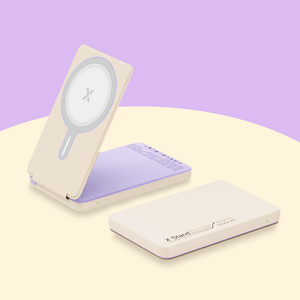
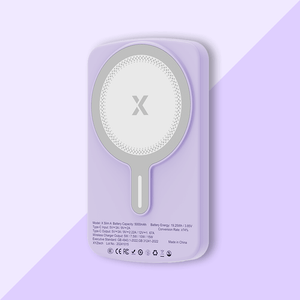
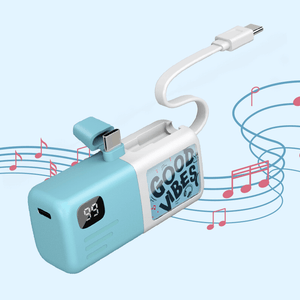
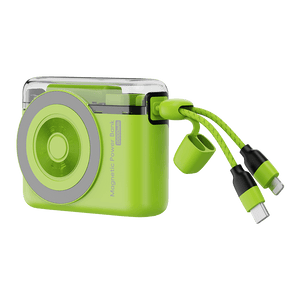
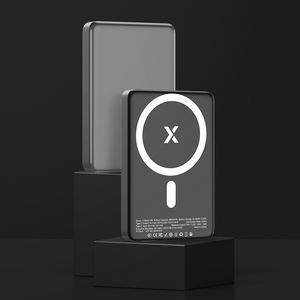
Once you know which iPhone you have, you can choose compatible accessories and charging options with confidence. If you're also looking for a portable charging solution, XYZtech offers 5,000mAh and 10,000mAh power banks, including wired, wireless, and 2-in-1 options.
Selected models are currently up to 59% off.
Related Articles
How to Prolong iPhone Battery Life: Top 10 Battery Care Tips
iPhone Is Not Charging? Common Reasons & Easy Solutions
Wattage for iPhone Charger Guide: What's Safe and Fast?


