

iPhone Battery Draining Fast? Causes, Fixes, and When to Worry

An iPhone battery draining fast doesn't automatically mean the battery itself is failing.
Before you start turning off features or buying a replacement battery, check what's actually using your power. Your iPhone's Battery settings can give you useful clues about where the battery is going.
In this guide, you'll learn how to find the source of the drain, what the most common causes are, and what you can do about each one.
In this blog:
- iPhone Battery Draining Fast: The Most Common Causes and Fixes
- When Should You Replace Your iPhone Battery?
- When Could iPhone Battery Draining Fast Be a Hardware Problem?
- Quick Checklist: What to Do When iPhone is Draining Battery Fast
- Frequently Asked Questions
- So, What Should You Do If iPhone Battery Draining Fast?
Let's get started!
iPhone Battery Draining Fast: The Most Common Causes and Fixes
There isn't one universal reason an iPhone is draining battery quickly. The most useful way to troubleshoot it is to start with the common causes and work toward less common ones.

1. An App Is Using Too Much Power
A demanding app is one of the first things to investigate when your iPhone is draining battery suddenly becomes noticeable.
Games, video streaming, navigation, cameras, social media, and photo-processing apps can use substantial power during active use. An app can also continue consuming energy in the background when it is syncing information, tracking your location, processing content, or performing another task.
- Check Settings > Battery and see whether one app is unusually high.
If the problem started recently, check whether that app was updated around the same time. IOS doesn't necessarily cause an unexpected battery problem; an individual app update can also change how the app behaves.
What to do
- Update the problem app from the App Store.
- If it is already updated, restart your iPhone.
- Check whether its battery usage returns to normal.
- If one app continues consuming an unusual amount of power, consider reinstalling it.
- If the app isn't essential, temporarily remove it and see whether battery life improves.
You don't need to disable every background feature on your iPhone just because one app is using power. Start with the app that the Battery settings identify.
2. Your Screen is Using More Power Than You Realize
Your display can consume a significant amount of energy, particularly when brightness is high and the screen stays on for long periods.
If your iPhone battery draining fast, check whether you're regularly using maximum brightness or leaving the screen active longer than necessary.
What to do
- Turning on Auto-Brightness.
- Lowering the brightness manually.
- Using a shorter Auto-Lock period.
- Locking your iPhone when you finish using it.
If you have an iPhone with an OLED display, Dark Mode can also reduce display power consumption in some situations. However, it isn't a magic battery-saving switch, so don't expect it to solve severe battery drain by itself.
3. iPhone Is Draining Battery Caused by Background Activity
Your iPhone can perform tasks even when you're not actively using an app.
Background App Refresh, location services, syncing, notifications, and other processes can all contribute to battery consumption.
How to check
- Look at Settings > Battery first. If a particular app shows significant background activity, investigate that app instead of disabling background features across your entire phone.
- You can also review: Settings > General > Background App Refresh
- And: Settings > Privacy & Security > Location Services
What to do
- Turn off Background App Refresh for apps that don't need to update when you're not using them. For location permissions, consider whether an app really needs continuous access or whether While Using is sufficient.
The goal isn't to shut down every background feature. It's to reduce unnecessary activity without making your iPhone less useful.
4. Weak Cellular Signal Can Make Your iPhone Work Harder
If your iPhone spends a lot of time somewhere with poor reception, cellular connectivity can become an unexpected source of battery drain.
Your phone may use more power when it has difficulty maintaining a cellular connection. This can be especially noticeable in buildings, rural areas, or other places where coverage is inconsistent.
What to do
- When possible, connect to Wi-Fi in areas with poor cellular reception.
- If you know you'll be somewhere without coverage for an extended period, Airplane Mode can prevent your iPhone from repeatedly searching for a signal.
- On supported iPhones, 5G Auto can also help manage cellular power use by allowing the device to use LTE when 5G isn't providing a meaningful benefit.
5. iPhone Is Draining Battery Fast After iOS Update
Did your iPhone battery start draining fast right after an iOS update? Don't immediately assume the update damaged your battery.
After an update, your iPhone may continue completing tasks in the background, which can temporarily increase battery activity and device temperature. You may also see an Ongoing iOS Update insight in Battery settings.
What to do
- Give your iPhone some time to finish its post-update activity, then check Battery usage again.
If the drain continues:
- Open Settings > Battery.
- Look for an app or system activity using an unusual amount of power.
- Check whether the problem is affecting the entire phone or just one app.
- Make sure your apps are also updated.
This distinction matters because a battery problem that appears after an iOS update isn't necessarily caused by iOS itself. An individual app may have changed at around the same time.
6. Your Battery Has Lost Capacity
If your iPhone is several years old and no longer lasts nearly as long as it once did, the physical battery may simply have aged. Rechargeable lithium-ion batteries gradually lose their ability to hold their original amount of charge.
To check your battery:
- iPhone 15 and later: Settings > Battery > Battery Health
- iPhone 14 and earlier: Settings > Battery > Battery Health & Charging
Look at Maximum Capacity and check whether your iPhone displays a service recommendation.
Apple says batteries in iPhone 14 models and earlier are designed to retain 80% of their original capacity at 500 complete charge cycles under ideal conditions. iPhone 15 models and later are designed for 80% at 1,000 cycles under ideal conditions.
Actual battery capacity varies depending on how the device is used and charged. You can also learn more here: iPhone Cycle Count: How Long Before You Replace Your Battery
What to do
Don't treat the percentage as your only diagnosis. If your battery capacity has dropped significantly and your iPhone no longer lasts through normal daily use, battery service may be worth considering.
If your iPhone shows a Service recommendation, that's another strong reason to have the battery evaluated.
7. Your iPhone is Getting Too Hot
Heat can affect iPhone battery performance and contribute to faster battery consumption.
Heavy gaming, video recording, navigation, demanding apps, direct sunlight, and charging in a hot environment can all raise the temperature of your iPhone.
Occasional warmth isn't automatically a sign of damage. Repeated or excessive heat is more concerning.
What to do
- Move your iPhone away from direct sunlight.
- Stop demanding apps temporarily.
- Avoid heavy use while charging.
- Let the device cool naturally before continuing intensive tasks.
Keeping your iPhone at a reasonable temperature is also important for long-term battery health.
8. A Temporary Software Problem May Be Causing The Drain
Sometimes your iPhone battery is draining fast without an obvious culprit in Battery settings. A temporary software process or app behavior can cause unusually high activity.
What to do
- Start with a normal restart. Then make sure your iPhone is running the latest available version of iOS and your apps are up to date.
If the problem persists, you can try a force restart:
- Quickly press and release the Volume Up button.
- Quickly press and release the Volume Down button.
- Press and hold the Side button until the Apple logo appears.
A complete restore or reset should be much further down your troubleshooting list. Back up your data before considering more drastic steps.
When Should You Replace Your iPhone Battery?
A battery replacement can make sense when the battery has significantly degraded and is no longer providing the battery life you need.
Signs that it's worth considering include:
- Your iPhone needs charging much more frequently than it used to.
- Battery life has noticeably declined over time.
- Your iPhone unexpectedly shuts down.
- Battery performance has become unreliable.
- Battery Health displays a service recommendation.
- The rest of the iPhone is still in good condition, but the battery is holding you back.
Don't assume that a single battery-health percentage automatically means you need a replacement. Consider the battery's condition alongside how your iPhone actually performs during everyday use.
If the phone is otherwise working well, replacing the battery can be a more practical option than replacing the entire device.
When Could iPhone Battery Draining Fast Be a Hardware Problem?
Hardware problems are less common than apps, settings, connectivity, software activity, and normal battery aging. But if you've ruled those out and the drain continues, professional service may be appropriate.
Pay particular attention if you also notice:
- Unexpected shutdowns
- Charging problems
- Unusual or excessive heat
- Physical damage
- A damaged charging port
- The screen lifting away from the frame
- Signs of battery swelling
A visibly swollen or damaged battery should not be treated like a normal battery-drain problem. Stop using the device and have it inspected by a qualified professional.
Quick Checklist: What to Do When iPhone is Draining Battery Fast
If you just want the short version, work through these steps:
- Open Settings > Battery and find the biggest source of usage.
- Check for excessive app or background activity.
- Lower screen brightness if the display is using a large amount of power.
- Use Wi-Fi when available, especially in areas with weak cellular reception.
- Update apps that are consuming unusually high amounts of battery.
- Restart your iPhone if the drain appears sudden or unusual.
- Give your iPhone time after an iOS update if the problem began immediately afterward.
- Use Low Power Mode when you need to stretch your remaining battery. Remember that it helps conserve power; it doesn't necessarily fix the underlying cause.
- Check Battery Health if your iPhone is older or its battery life has declined over time.
- Consider battery service if the battery is significantly degraded or your iPhone recommends it.
The important thing is to diagnose first and change settings second. You don't need to sacrifice every feature on your iPhone just to make the battery last longer.
Frequently Asked Questions
Does dark mode really save battery?
Yes, Dark Mode can reduce display power consumption on iPhones with OLED screens because black pixels require less power. The actual battery-life improvement depends on factors such as brightness, screen-on time, and how much of the display is dark. It is useful, but it shouldn't be treated as the main solution if your iPhone battery is draining unusually fast.
Why is my iPhone battery draining while off?
A small amount of battery consumption can still occur when an iPhone is powered down because some low-power functions remain available, depending on the model and features enabled. However, a large or unusually rapid loss of charge while the phone is completely off is not something to dismiss as normal. If this happens repeatedly, check Battery Health and consider having the device inspected.
Why is my iPhone battery draining faster after the iOS 26 update?
An iOS update can temporarily increase battery use because the iPhone may continue completing tasks in the background after the installation. This can make battery life appear worse for a short period, particularly immediately after a major update.
Give the device some time to finish its post-update activity, then check Settings > Battery to see whether the higher usage continues. You can also learn more here: iPhone Not Charging After Update: Causes and 10 Quick Fixes

So, What Should You Do If iPhone Battery Draining Fast?
An iPhone battery draining fast doesn't automatically mean you need a replacement. Start with Settings > Battery, find what's consuming the most power, and then address that specific cause.
An app, high screen brightness, background activity, weak cellular signal, a recent update, heat, or normal battery aging can all produce similar symptoms. Once you identify which one is affecting your iPhone, the solution becomes much easier to find.
Key takeaways:
- Check Battery usage first to find what's actually consuming power.
- Demanding apps, screen brightness, background activity, and weak signals are common causes of battery drain.
- Battery drain after an iOS update can be temporary, so give the phone time before assuming there's a problem.
- Battery Usage and Battery Health are different: one helps identify current power consumption, while the other shows the battery's condition.
- Don't replace the battery immediately. Rule out apps, settings, connectivity, software activity, and other common causes first.
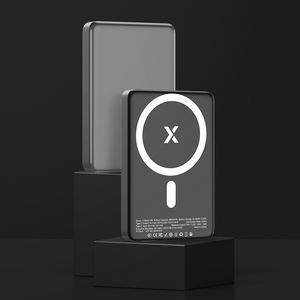
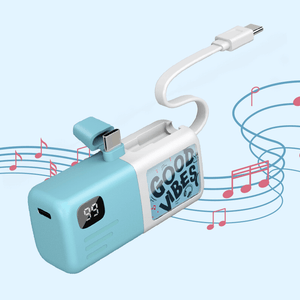
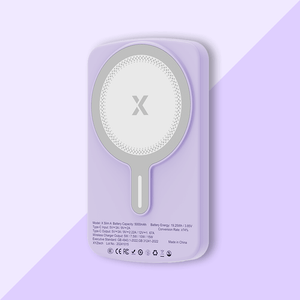
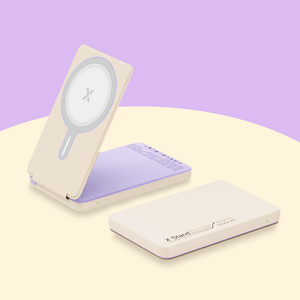
And if your iPhone simply doesn't make it through the day anymore, a portable power bank can be a convenient backup when you're away from an outlet. It's especially useful for travel, commuting, long days out, or situations where you need a little extra battery without having to stop and find a charger.
XYZtech offers 5,000mAh and 10,000mAh power banks, including wired, wireless, and combination models, so you can keep your iPhone running when a wall outlet isn't convenient.
Related Articles
How to Prolong iPhone Battery Life: Top 10 Battery Care Tips
iPhone Stopped Wireless Charging: Causes and Fixes
iPhone Is Not Charging? Common Reasons & Easy Solutions


