

iPhone Not Charging After Update: Causes and 10 Quick Fixes

A software update should improve your iPhone, not leave it stuck on a charger that barely works.
If your iPhone not charging after update started immediately after installing a new iOS version, the timing is hard to ignore. Many iPhone users have reported that their device suddenly stops charging through a cable, charges extremely slowly, gets stuck at a certain battery percentage, or only charges after a restart. In many cases, iPhone won't charge after update is caused by a temporary software glitch rather than a failed battery or charging port.
The good news is that this problem is often fixable at home. This guide explains why it happens, what you should do first, what to avoid, and when it's time to contact Apple.
In this blog:
- iPhone Not Charging After Update: Why It Can Happen
- 10 Fixes for iPhone Not Charging After Update
- What Not to Do If iPhone Won’t Charge After Update
- How to Prevent Future iPhone Charging Issues After Update
- When to Contact Apple Support
- Frequently Asked Questions
Let’s get started!
iPhone Not Charging After Update: Why It Can Happen
An iOS update changes how the iPhone manages power, charging, battery protection, and communication with chargers and cables. Right after an update, the phone may spend several hours, or even a day or two, re-indexing files, updating apps, scanning photos, and optimizing the system.
During this period, some users experience iPhone charging issues after update, including slower charging, charging interruptions, or the phone showing the charging icon without actually increasing the battery percentage. Apple has also released update patches in the past that specifically addressed charging-related software bugs, which suggests that charging problems can sometimes be triggered by iOS itself.
If the charging problem appeared immediately after installing iOS and multiple Apple-certified chargers have already been tested, that timing can help narrow the problem down when troubleshooting or speaking with Apple Support.
10 Fixes for iPhone Not Charging After Update
Start with the easiest fixes first. Many charging problems disappear after a simple restart or after the phone finishes post-update background tasks.

Here are the top 10 fixes you can try first before contacting Apple Support:
1. Check the Charging Cable and Adapter
Make sure your charging cable and power adapter are working properly. Inspect the cable for fraying, bent connectors, or visible damage, and try another Apple-certified cable and charger if available. A faulty cable can look like a software problem when it is actually preventing proper charging.
2. Try a Different Power Outlet/Source
Plug the charger directly into a wall outlet instead of a power strip, extension cord, USB hub, or computer. A different outlet can help rule out problems with power delivery.
If you are using an older USB-A charger or a vehicle USB-A port, try switching to a USB-C Power Delivery charger (20W or higher). Several users reported that older USB-A chargers stopped charging properly after an iOS update, while USB-C fast chargers continued to work normally.
3. Let the iPhone Charge for at Least 30 Minutes
If the battery is very low, the charging indicator may appear before the phone is able to increase the battery percentage. Leave the iPhone connected to power for at least 30 minutes, and avoid using it during that time. Some users found that their phone would slowly charge with the screen off but lose battery while using apps, music, or CarPlay because a low-output charger could not keep up with power consumption.
4. Restart Your iPhone
A normal restart can clear temporary software glitches that may have appeared after the iOS update. Turn the iPhone off, wait a few seconds, and turn it back on before testing charging again.
5. Force Restart Your iPhone
If your iPhone not charging after update started immediately after installing iOS, the fix that worked for many users was a force restart.
For iPhone 8 or later:
- Press and quickly release Volume Up
- Press and quickly release Volume Down
-
Press and hold the Side button until the Apple logo appears
After the phone restarts, connect the charger again and leave it connected for several minutes.
If Your iPhone Only Charges When Turned Off
Several users reported that their iPhone would not charge while powered on but would begin charging as soon as it was turned off. In some cases, the phone automatically powered back on and continued charging normally. If this happens, perform a force restart and install the latest iOS update available, as this behavior has been linked to temporary charging management glitches after certain software updates.
6. Clean the Charging Port Carefully (Moisture Detected)
Pocket lint and dust can prevent the connector from making proper contact. Turn the phone off and gently remove debris using a wooden toothpick or a soft anti-static brush. Avoid metal tools, which can damage the charging port.
If you see a “Moisture Detected” warning even though the port is dry, disconnect the charger and allow the phone to sit for a while before testing again. Some users reported false moisture warnings after certain iOS updates, particularly when wireless charging continued to work normally.
7. Try Wireless Charging
If your iPhone won't charge after update through the charging port, place it on a MagSafe or Qi wireless charger.
Many users have reported that wireless charging continues to work even when wired charging becomes unreliable after an iOS update. In some cases, charging wirelessly for a few minutes allowed the phone to recover and later charge normally through a cable.
This does not permanently solve the issue, but it can provide enough battery power to back up your data and install a newer iOS update.
8. Turn Off Optimized Battery Charging Temporarily
Optimized Battery Charging is designed to reduce battery wear by slowing charging near 80% under certain conditions. While it is usually helpful, some users have reported temporary charging problems that improved after disabling it.
- Go to: Settings > Battery > Battery Health & Charging
Turn off Optimized Battery Charging, then reconnect the charger and test again. You can re-enable it later after the charging problem has been resolved.
9 Update iOS Again (Install The Patch Release)
This is one of the most important steps.
Apple frequently releases follow-up updates that fix bugs introduced in earlier versions. Several recent iOS releases specifically addressed wired charging problems affecting some iPhone models.
- Go to: Settings > General > Software Update
If a newer version is available, install it. If your battery is too low to update, try charging with a wireless charger first, then perform the update once the battery has enough power.
10. Check Whether Charging Is Stuck at a Certain Percentage
One of the more frustrating iphone charging issues after update is when the phone starts charging but stops after gaining only 1–5%, or remains stuck at a number such as 17%, 54%, or 67%.
This can happen when:
- iOS is still performing background optimization tasks
- A charging management process becomes stuck
- The software temporarily limits charging current
- The phone is not communicating correctly with certain chargers
A force restart, installing the latest iOS update, or switching to a different charging method often resolves this type of behavior.
What Not to Do If iPhone Won’t Charge After Update
When your iPhone not charging after update appears suddenly, it is easy to assume the battery has failed. Avoid making the situation worse.
- Don't repeatedly unplug and reconnect the charger. Constantly reconnecting the cable can interrupt charging negotiations and make troubleshooting more confusing.
- Don't use damaged or uncertified charging accessories. Low-quality cables may work intermittently and can create symptoms that resemble software problems.
- Don't attempt unofficial iOS downgrades. Many websites suggest rolling back to an older iOS version. In most cases, Apple no longer signs previous public releases, making downgrading impossible or unreliable. Attempting unofficial downgrade methods can put your data at risk.
- Don't ignore false moisture warnings. If the phone displays a moisture detection warning, disconnect the charger and allow the port to dry. If the warning continues for many hours despite a dry port, it may be related to a software issue and should be evaluated further.
How to Prevent Future iPhone Charging Issues After Update
While software bugs cannot always be avoided, a few habits reduce the chances of being caught with a nearly unusable phone after an update.
- Install iOS updates when your battery is above 50%
- Keep at least one Apple-certified charging cable available
- Avoid updating immediately before travel or important work
- Back up your iPhone regularly
- Keep the charging port clean and dry
When to Contact Apple Support
Seek professional help if your iPhone won't charge after update and none of the previous steps work.
Contact Apple if:
- The phone does not charge with any cable or wireless charger
- The charging port feels loose or physically damaged
- The battery continues to drain while showing that it is charging
- The phone becomes unusually hot during charging
- The problem persists after installing the latest iOS version
- Apple Diagnostics or a technician identifies a charging hardware issue
If the issue began immediately after an update and multiple Apple-certified chargers have been tested, mention that timeline specifically when speaking with Apple Support. Several users have reported that Apple technicians acknowledged similar charging complaints following recent iOS releases, and some devices passed diagnostics even though charging behavior had changed.
Frequently Asked Questions
Does the new iPhone update cause battery issues?
Yes, installing a fresh iOS version can temporarily affect battery performance and charging behavior. After an update, the iPhone often performs background tasks such as indexing files, updating apps, and analyzing photos, which can increase power consumption for a short time. These effects usually improve after the system finishes optimizing over the next day or two.
Can you undo the new iPhone update?
In most situations, you cannot simply revert to an earlier iOS version after installing an official update. Apple typically stops approving older software versions shortly after releasing a new one, which prevents standard downgrading. If the update has only been downloaded and not installed, you can usually remove the update file from Settings > General > iPhone Storage before installation.
Why is my phone taking forever to charge after an update?
Charging can become unusually slow after an update because the phone may still be completing background optimization tasks. The update can also affect charging management settings or temporarily interfere with how the device communicates with certain chargers. Restarting the phone, waiting several hours, and testing a different Apple-certified cable and adapter are good first steps.

iPhone Not Charging After Update: The Bottom Line
Updated: If your iPhone not charging after update began immediately after installing iOS, the issue is often related to charging management or how the phone communicates with certain chargers and cables. A force restart, a newer iOS update, or testing a different charger can often resolve the problem.
Key Takeaways
- A recent iOS update can temporarily cause iPhone charging issues after update
- Force restarting the iPhone is often the quickest and most effective fix
- Wireless charging may work even when wired charging does not
- Install the latest iOS update because Apple frequently releases charging bug fixes
- Contact Apple if the problem continues after testing multiple certified chargers and updating iOS
Most charging problems that appear after an update are manageable and do not automatically mean your iPhone has a damaged battery or charging port. Start with the simple fixes first, and if the issue persists, Apple can help determine whether it is software-related or requires hardware service.
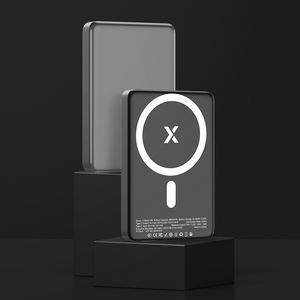
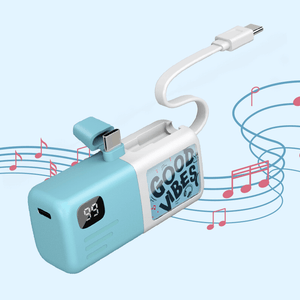
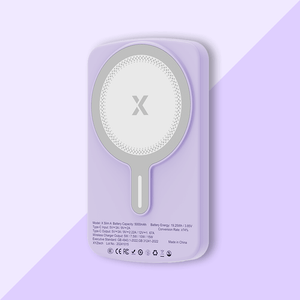
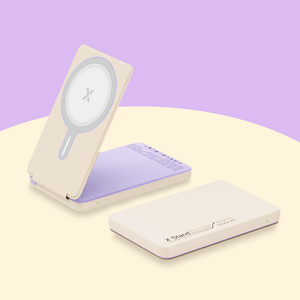
If you rely on your phone throughout the day, having a backup power source can be a lifesaver during unexpected charging issues. XYZtech power banks, available in 5,000mAh and 10,000mAh capacities, give you a convenient way to keep your iPhone powered while troubleshooting or waiting for a software update that resolves the charging problem.


