

Samsung Galaxy Tab Won’t Charge? Causes, Easy Fixes, & Tips!

When a Samsung Galaxy Tab won't charge, it can feel confusing because the problem is not always obvious. Sometimes the tablet appears connected to power but refuses to charge properly. In other cases, the device only charges at certain angles or only starts charging after a restart.
Many users experiencing battery not charging on Samsung tablet issues discover that the cause is something surprisingly simple. Today, let’s walk through the most common reasons your tablet may not charge, how to fix each one, and what you can do to prevent the issue in the future.
In this guide:
- Why a Samsung Galaxy Tab Won’t Charge in the First Place
- Samsung Galaxy Tab Won’t Charge: Causes And How to Fix Them
- How to Prevent Battery Not Charging on Samsung Tablet
- When to Seek Professional Help
- When It Might Be Better to Replace the Tablet
- Frequently Asked Questions
- So, Why Does a Samsung Galaxy Tab Won’t Charge? A Quick Recap
Let’s get started!
Why a Samsung Galaxy Tab Won’t Charge in the First Place
Charging issues rarely happen without a reason. Tablets rely on several components working together: the power source, charging cable, power adapter, charging port, battery, software, etc.
If any one of these stops working correctly, the result may look like a Samsung tablet not charging when plugged in, even though the device is connected to power.
Common causes include:
- Weak power source
- Faulty or incompatible chargers
- Weak power adapter
- Dust or debris blocking the charging port
- Software glitches that interrupt charging
- A battery that is deeply discharged
- Disabled fast charging
- Moisture detected
- Battery wear over time
Understanding which of these is happening helps you apply the right fix instead of guessing.
Samsung Galaxy Tab Won’t Charge: Common Causes (And How to Fix Them)
Charging problems are easier to solve when you start with the simplest possibilities first. Below are the most common issues, starting with the easiest checks before deciding to seek professional help or replacing it.
1. Samsung Tablet Not Charging When Plugged In? Might Be Weak Power Source
One of the most overlooked causes of battery not charging on samsung tablet issues is the power source itself not providing enough wattage.
Why this happens
Not all power sources deliver the same amount of electricity. Tablets require more power than phones or small accessories, and some sources simply cannot provide enough energy to start charging a large battery.
For example:
|
Power Source |
Typical Power Output |
Charging Result |
|
Laptop USB port |
5W–7.5W |
Often too weak for tablets |
|
Incompatible power bank |
10W |
Very slow charging |
|
Standard phone charger |
10–15W |
Slow charging |
|
Tablet fast charger |
25W+ |
Normal charging |
If your tablet battery is completely drained, weak power sources that cannot deliver enough wattage, like laptop USB ports, may not provide enough current to revive it.
Why it matters
A weak power source can cause symptoms such as:
- Charging icon appears but battery percentage never increases
- Tablet turns on briefly then shuts off
- Device only charges when powered off
This can make it look like a Samsung tablet not charging when plugged in, even though the tablet is technically receiving some power.
How to fix it
Try these steps:
- Plug the tablet directly into a wall outlet instead of a laptop USB port.
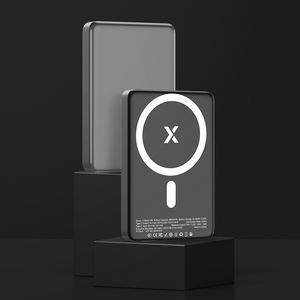
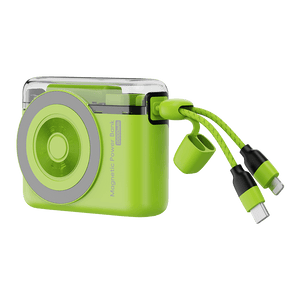
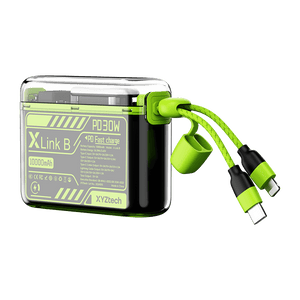
- Look for power banks with 10,000 mAh or higher capacity, 18W+ output support, and with USB-C Power Delivery (PD)
- Use a tablet-compatible charger (25W or higher if supported).
- Avoid charging from weak power banks when the battery is fully drained.
- Test a different power outlet to rule out outlet issues.
Switching to a stronger power source often solves the problem immediately.
2. Faulty or Incompatible Charging Cable
One of the most common reasons behind battery not charging on Samsung tablet problems is the charging cable itself.
Why this happens
Charging cables can wear out over time. The internal wires may break, the connectors may loosen, or the cable may simply not support the power level your tablet requires.
Some users also charge their tablets using laptop USB ports or generic cables that cannot supply enough power.
Why it matters
If the cable cannot deliver enough electricity, your tablet may:
- Show the charging icon but never increase battery percentage
- Turn on briefly and shut off again
- Charge extremely slowly
How to fix it
Try these simple steps:
- Use the original Samsung cable and charger if possible.
- Test another USB-C cable that supports fast charging.
- Avoid charging from a laptop USB port if the battery is fully drained.
- Plug the charger directly into a wall outlet.
Many users find their tablet begins charging immediately after switching to a proper charger.
3. The Power Adapter Is Too Weak
Sometimes the cable is fine, but the adapter supplying power is not strong enough.
Why this happens
Tablets require more power than small accessories like earbuds or smartwatches. If you use a low-watt charger designed for smaller devices, the tablet may struggle to start charging.
Some users notice the device only powers on after switching to a higher-watt adapter.
Why it matters
If the power output is too low, the device may:
- Stay stuck at 0% battery
- Flash the charging icon repeatedly
- Fail to power on after being fully drained
How to fix it
- Use a Samsung-approved charger compatible with your tablet model.
- Choose a charger with the recommended wattage (often 25W or higher depending on the device).
- Avoid charging through USB hubs or weak adapters.
4. Dust or Debris in the Charging Port
Another surprisingly common reason a Samsung Galaxy Tab won't charge is a blocked charging port.
Why this happens
Over time, dust, lint, or tiny particles can collect inside the USB-C port. Even if the port looks clean from the outside, debris may prevent the cable from making proper contact with the internal connectors.
This often happens if the tablet is carried in bags, backpacks, or pockets.
Why it matters
A dirty charging port can cause:
- Charging only at certain angles
- Loose cable connection
- Intermittent charging
How to fix it
- Turn off the tablet first.
- Use a flashlight to inspect the charging port.
- Gently clean the port using a soft brush or wooden toothpick.
- Avoid metal objects that could damage the connectors.
Many devices start charging normally again once the port is cleaned.
5. Battery Completely Drained (Deep Discharge)
When a tablet battery reaches absolute zero, it sometimes needs extra time to recover.
Why this happens
Lithium-ion batteries enter a deep discharge state when left unused for long periods. When this happens, the device may not start charging immediately.
Why it matters
A deeply discharged battery may cause:
- A flashing charging icon
- The tablet briefly turning on then shutting off
- No response for several minutes after plugging in
How to fix it
Try this process:
- Plug the tablet into a wall charger.
- Leave it connected for 15–30 minutes.
- Perform a force restart by holding the Power and Volume Down buttons together for about 10–20 seconds.
- Repeat the restart if necessary until the tablet reaches 1%.
Once the battery reaches a small charge level, the device should start charging normally.
6. Software Glitches Interrupt Charging
Occasionally, charging problems are caused by temporary software issues.
Why this happens
Apps, system errors, or background processes can interfere with power management.
Why it matters
When software causes the issue, the tablet may show signs like:
-
Charging stops randomly
-
Battery percentage does not increase
- The device behaves normally after a restart
How to fix it
Try these steps:
- Restart the tablet normally.
- Update the device software.
- Boot the tablet in Safe Mode to see if an app is causing the issue.
- Use the Samsung Members app to run battery diagnostics.
7. Fast Charging Is Disabled
Another overlooked cause of battery not charging on Samsung tablet issues is disabled fast charging.
Why this happens
Samsung tablets allow users to turn off fast charging in the settings. When disabled, the device charges much slower.
Why it matters
Slow charging may make it seem like the tablet is not charging at all.
How to fix it
- Check your settings: Settings → Device Care → Battery → Charging Settings → Enable Fast Charging
If supported, enabling fast charging can significantly improve charging speed.
8. Moisture Detection Prevents Charging
Samsung tablets include safety features that stop charging if moisture is detected.
Why this happens
Charging while moisture is present in the USB port could damage internal circuits.
Why it matters
When this happens, the tablet may refuse to charge even when plugged in.
How to fix it
-
Disconnect the charger immediately.
-
Dry the device with a soft cloth.
-
Leave the tablet in a well-ventilated area until the port is completely dry.
Charging should resume once the moisture warning clears.
9. Battery Wear or Damage
If your tablet is several years old, the battery itself may be the issue.
Why this happens
Lithium-ion batteries naturally degrade over time. After hundreds of charging cycles, they lose their ability to store energy efficiently.
Why it matters
A failing battery may cause:
- Rapid battery drain
- Unexpected shutdowns
- Slow or inconsistent charging
- Overheating during normal use
How to check battery health
You can check the battery status using the Samsung Members diagnostic tool.
Most tablet batteries last around 3 to 5 years, depending on usage habits and charging patterns.
How to Prevent Battery Not Charging on Samsung Tablet
Many battery not charging on samsung tablet problems can be avoided with a few simple habits. Taking care of your charging accessories and maintaining the tablet properly can help reduce the chances of running into charging issues later.
Use reliable chargers
Always use chargers and cables that are designed to supply enough power for tablets. Low-quality accessories or chargers with insufficient wattage may struggle to deliver the power needed to charge a larger battery.
Using a charger that supports your tablet’s recommended wattage helps ensure consistent and stable charging.
Keep the charging port clean
Dust and lint can slowly accumulate inside the USB-C port, especially if the tablet is frequently carried in bags or backpacks. When debris blocks the port, the charging cable may not connect properly.
Checking the port occasionally and gently removing dust can help maintain a reliable connection.
Avoid letting the battery reach 0% frequently
Letting the battery reach 0% occasionally is normal, but repeatedly draining the battery completely can place additional stress on lithium-ion batteries.
Charging the device before it fully runs out of power can help maintain better battery health and reduce charging issues over time.
Keep the device cool
High temperatures can affect battery performance and shorten its lifespan. Charging the tablet in a cool environment and avoiding heavy use while it is charging can help protect the battery and maintain consistent charging performance.
When to Seek Professional Help
If you tried the fixes above and your Samsung tablet not charging when plugged in problem continues, professional repair may be necessary.
Consider contacting Samsung support if:
- The charging port is damaged
- The tablet overheats while charging
- The battery is swelling, or the device casing bulges
- The tablet will not power on at all
These signs usually indicate hardware damage that requires a technician.
When It Might Be Better to Replace the Tablet
Repairing a tablet is often worthwhile if:
- The device is relatively new
- The repair cost is low
- The issue is a simple battery replacement
However, replacement may make more sense if the tablet is older and the repair cost approaches the price of a new model.
Frequently Asked Questions
What is the lifespan of a Samsung tablet battery?
Most Samsung tablets rely on lithium-ion batteries that gradually lose capacity with regular use. Under normal conditions, these batteries typically function well for about three to five years. Factors such as heat exposure, frequent full discharges, and heavy daily usage can shorten that timeframe. Maintaining moderate charge levels and avoiding extreme temperatures can help extend battery life.
Why is my Samsung tablet not charging when plugged in?
A tablet may fail to charge even when connected to power if the cable, adapter, or charging port has an issue. Dirt inside the USB-C port or a weak charger can prevent proper electrical contact, stopping the battery from receiving power. Software glitches or background apps may also interrupt the charging process in some situations. Checking accessories and cleaning the port usually resolves the problem.
How do I revive a dead Samsung tablet?
Start by connecting the tablet to a wall charger and letting it sit for several minutes to allow the battery to regain minimal power. After that, press and hold the Power button together with the Volume Down key until the Samsung logo appears. If the device still does not respond, leave it connected to power longer before trying again. Deeply discharged batteries sometimes need extra time before they can restart.
Is it worth repairing a tablet?
Repairing a tablet can be practical when the device is fairly new and the repair cost is small compared with buying a replacement. Common fixes like battery replacement or port cleaning are usually inexpensive and restore normal operation. However, if the tablet is several years old and requires major repairs, purchasing a newer model may offer better long-term value.
So, Why Does a Samsung Galaxy Tab Won’t Charge? A Quick Recap
When a Samsung Galaxy Tab won't charge, the issue is usually related to power source, accessories, debris in the charging port, software glitches, or a battery that has reached the end of its lifespan. Identifying the exact cause makes it much easier to apply the right fix and restore normal charging.
Key Takeaways
- Weak or incompatible power sources can prevent proper charging, especially when the tablet battery is completely drained.
- Faulty cables or low-watt chargers are among the most common causes of battery not charging on Samsung tablet issues.
- Dust or lint inside the charging port can block proper connections and cause intermittent charging.
- A deeply discharged battery may require extra time connected to a wall charger before the device can restart.
- Software glitches or disabled fast charging settings can interrupt the charging process.
- Samsung tablet batteries typically last 3–5 years before performance begins to decline.
Most charging problems are manageable with simple troubleshooting steps and good charging habits. With a bit of care, your tablet can continue working reliably for years.
Related Articles
Airline Battery Restrictions Updated: What Travelers Must Know


